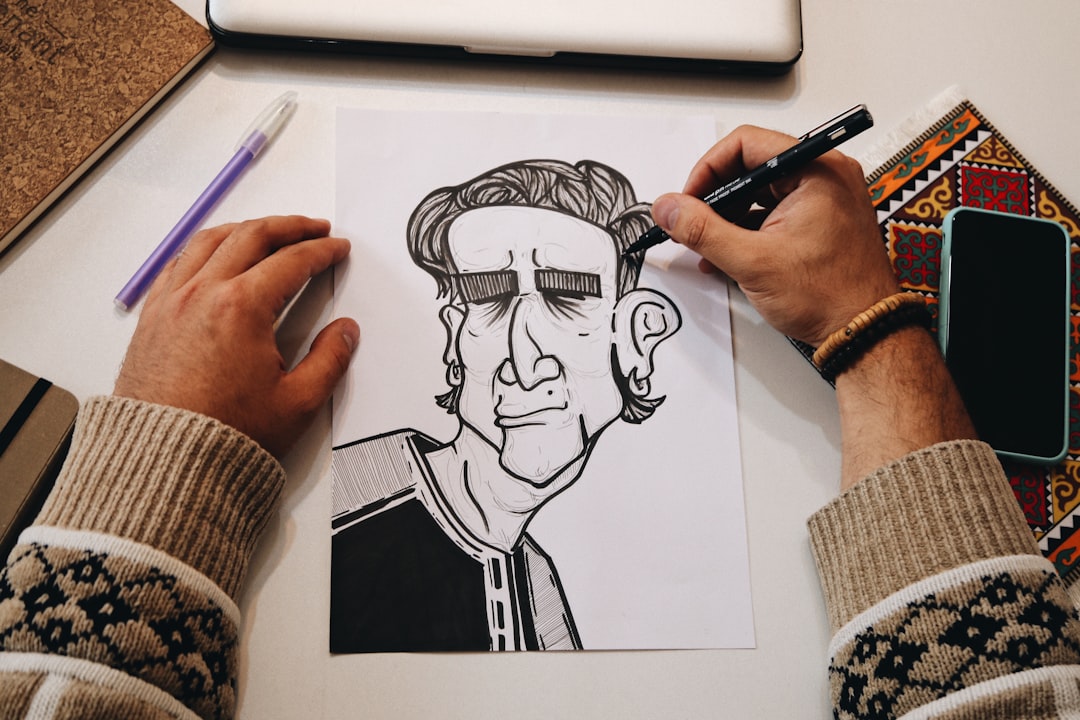
The Best Step by Step Drawing App Options in 2026: A Hands-On Guide for Beginner & Intermediate Artists
Most digital art software throws a blank canvas, 400 custom brushes, and a complex color wheel at you, then leaves you to figure out the rest. That isn't learning—it's an instant recipe for creative burn-out. If you're picking up a digital stylus for the first time or trying to break out of a plateau, you don't need more toolbars. You need structural guidance.
Finding the best step by step drawing app isn't about getting the most features; it's about finding software that teaches you how to break down complex subjects into manageable forms.
In our experience testing digital art workflows over the last decade, the gap between "drawing tools" and "drawing instructors" has narrowed significantly. In 2026, interactive tracing overlays, real-time stroke recognition, and augmented reality have changed how beginners learn digital illustration. Whether you're using a basic Android tablet, an iPad with an Apple Pencil, or a budget graphics tablet plugged into a laptop, this guide cuts through the marketing noise to show you which apps genuinely build skill.
What Makes a Truly Great Guided Art Learning App?
Not all guided art apps operate the same way. Some are glorified digital coloring books, while others are structured drawing courses wrapped in interactive software. Before dropping money on a yearly subscription, you need to understand the underlying methodology these apps use to teach line, form, and proportion.
Layer-based progression vs. video tutorials
Static video tutorials force you to split your attention between an instructor's screen and your canvas. You spend half your time pausing, rewinding, and guessing brush sizes.
The best step-by-step apps render interactive guides directly on your working canvas. They display line-by-line construction steps as an underlay, requiring you to hit precise anchor points or match stroke paths before unlocking the next stage. This active interaction builds spatial awareness far quicker than passive video watching.
Vector tracing vs. structural breakdown
Here's the thing: mindlessly tracing over a finished drawing won't turn you into an artist. It teaches line control, but it bypasses spatial reasoning. Look for apps that emphasize structural breakdown—teaching you to draw simple geometric primitives (spheres, cubes, cylinders) before adding refined line art.
An app that jumps straight from a blank screen to detailed contours is selling you a shortcut that will hurt your growth later.
Bad Approach:  Blank Canvas ──> Contour Tracing ──> Finished Line Art (Zero Form Understanding)
Good Approach: Primitives/Boxes ──> Structural Planes ──> Line Refinement ──> Shading
Hardware compatibility & stylus latency
An app can have brilliant tutorials, but if the stroke engine lags behind your pen, your muscle memory takes a hit. In 2026, palm rejection, pressure-curve customization, and low latency (<10ms) are non-negotiable.
If you're on a budget device like an iPad 9th Gen or a Samsung Galaxy Tab A9+, light software optimization matters far more than high-res 8K canvas support.
Top 7 Ranked: Choosing the Best Step by Step Drawing App in 2026

We evaluated dozens of apps across iOS, Android, and Windows platforms. Here is our direct, field-tested breakdown of the best options available today.
1. ShadowDraw (Best Overall for iPad Users)
ShadowDraw remains a benchmark for guided digital illustration on iPadOS. Instead of telling you what to draw, it acts as a digital stencil that reveals vector lines stroke-by-stroke as you physically draw over them with your Apple Pencil.
- The Teaching Method: It uses a zero-UI approach during lessons. You don't pick brushes or tweak opacities; you simply match the light vector strokes displayed on the screen. Once you complete a stroke accurately, the next construction line fades in.
- Target Audience: Absolute beginners who want immediate physical feedback without getting overwhelmed by software settings.
- Platform & Price: iPadOS only. Free tier available with limited lessons; full access costs roughly ₹1,650/month or ₹8,200/year ($19.99/mo or $99.99/yr).
2. Da Vinci Eye (Best for AR-Assisted Real-World Tracing)
Da Vinci Eye bridges the gap between digital screens and traditional paper. It uses your smartphone or tablet camera to overlay a semi-transparent reference image onto your physical sketchpad or canvas using augmented reality.
- The Teaching Method: You look at your paper through your device screen (mounted on a stand or mug). The app breaks down reference photos into step-by-step high-contrast layers, letting you draw on actual paper while looking through the digital guide.
- Target Audience: Traditional artists, muralists, and creators who prefer real pencils and ink but need accurate proportions and grid breakdowns.
- Platform & Price: iOS and Android. One-time purchase around ₹899 ($9.99), with optional add-on packs.
3. Sketchar / Sketch AR (Best AI-Driven Skill Personalization)
Sketchar combines interactive camera overlays with step-by-step digital canvas tutorials. It uses computer vision to track your drawing progress in real time, giving immediate visual feedback if your proportions drift off track.
- The Teaching Method: You select a course—such as anime character design, architectural sketching, or portraiture—and the app generates a personalized daily curriculum based on a quick skill test.
- Target Audience: Gamified learners who need structured daily streaks and clear milestone tracking to stay consistent.
- Platform & Price: iOS, Android, Microsoft HoloLens. Free trial; Pro tier runs approximately ₹1,250/month or ₹5,900/year ($14.99/mo or $69.99/yr).
4. How to Draw - Easy Lessons (Best Budget Option for Android)
If you don't have a high-end tablet or an Apple Pencil, How to Draw by Artflow Software is a lightweight, reliable option. It runs smoothly on older Android phones and entry-level tablets like the Samsung Tab A series.
- The Teaching Method: Classic grid and shape-decomposition methodology. The app shows a frame, adds a few structural lines in red, and asks you to replicate them on your digital canvas or paper.
- Target Audience: Kids, casual hobbyists, and artists on low-spec hardware looking for a straightforward step-by-step catalog.
- Platform & Price: Android and iOS. Free with ad support; ₹299 ($3.99) one-time fee to remove ads.
5. ArtFlow: Paint Draw Sketch (Best for Learning Tablet Mechanics)
While ArtFlow is a full-featured digital painting app, its built-in lesson module makes it one of the top Android options for transitioning from basic step-by-step guides to professional digital art setups.
- The Teaching Method: It pairs step-by-step project templates with full access to layer stacks, brush dynamics, and pressure-sensitivity adjustments. You learn how to construct an image and how to use professional digital tools at the same time.
- Target Audience: Intermediate artists ready to move beyond basic tracing overlays into real digital painting workflows.
- Platform & Price: Android. Free base version; Pro license is roughly ₹499 ($5.99) as a one-time purchase.
6. Procreate + Interactive Tutorial Packs (Best Professional Pathway)
Procreate itself isn't a dedicated guided learning app; it's an industry-standard raster illustration suite. However, in 2026, the ecosystem of step-by-step interactive .procreate tutorial canvases makes it the undisputed best choice for serious artists.
- The Teaching Method: You download layered tutorial files (from creators on Gumroad or Patreon) that contain pre-configured brush presets, locked step-by-step construction layers, and video embeds directly inside the canvas file.
- Target Audience: Anyone serious about building a professional portfolio in digital illustration, concept art, or graphic design.
- Platform & Price: iPadOS (₹1,299 / $12.99 one-time purchase) and iPhone (Procreate Pocket, ₹599 / $5.99). Third-party tutorial packs range from free to ₹1,500.
7. PaperColor (Best Casual Sketching App for Mobile)
PaperColor (formerly PaperDraw) imitates traditional art mediums—like watercolors, colored pencils, and markers—over structured step-by-step templates.
- The Teaching Method: It offers translucent reference base maps. You follow simple line guides using digital tools that closely mimic real-world pigments and textures.
- Target Audience: Mobile phone artists and casual sketchers who want quick, stress-free drawing sessions on their daily commute.
- Platform & Price: Android and iOS. Free; VIP features Get for ₹420/year ($4.99/yr).
Side-by-Side Comparison: Feature, Cost, and Platform Breakdown
To help you compare your options, here is how the top apps stack up across platforms, pricing models, and primary teaching methods:
| App Name | Primary Platform | Pricing Model (INR / USD) | Core Methodology | Ideal Skill Level |
|---|---|---|---|---|
| ShadowDraw | iPadOS | Freemium (~₹8,200/yr) | Interactive vector line-reveal | Absolute Beginner |
| Da Vinci Eye | iOS, Android | Paid (~₹899 one-time) | AR camera overlay on physical paper | Beginner to Advanced |
| Sketchar | iOS, Android | Subscription (~₹5,900/yr) | AI-assisted real-time feedback | Beginner to Intermediate |
| How to Draw | Android, iOS | Free / Paid (~₹299 unlock) | Grid & basic shape step breakdown | Absolute Beginner |
| ArtFlow | Android | Free / Paid (~₹499 one-time) | Layered canvas step tutorials | Beginner to Intermediate |
| Procreate + Packs | iPadOS | Paid (~₹1,299 + pack fees) | Modular layered canvas workbooks | Intermediate to Pro |
| PaperColor | Android, iOS | Freemium (~₹420/yr) | Trace overlay with traditional tool feel | Casual / Beginner |
How We Evaluated These Apps: Our 5-Point Testing Framework
We didn't just look at feature lists on app stores. We put these applications through a structured testing setup across various price points and devices—ranging from an entry-level iPad 10th Gen with a budget stylus to a high-end Samsung Galaxy Tab S9 Ultra using the S-Pen.
       [ 1. Step Granularity ]
                 │
       [ 2. Stylus Response ]
                 │
       [ 3. Constructive Feedback ] ───> Final Ranking Score
                 │
       [ 4. Tool Transition ]
                 │
       [ 5. Price-to-Value Ratio ]
1. Step Granularity
An app fails if it jumps from a circle to a fully rendered dragon in three steps. We evaluated how well each application breaks down complex figures into simple, digestible steps. The best step by step drawing app must teach construction primitives first—boxes, spheres, cross-contours—before introducing detail pass lines.
2. Stylus Response & Engine Performance
We tested line lag, palm rejection reliability, and pressure curve customizability. An app that drops strokes or registers false palm inputs disrupts your focus and ruins line confidence.
3. Constructive Feedback Loops
We prioritized apps that evaluate your input over those that simply display static images. Systems that highlight line deviation, assist with symmetry, or require geometric accuracy before moving to the next phase scored significantly higher.
4. Transitioning to Independent Drawing
Learning to draw inside an app is useless if you can't draw without it. We assessed whether an app's lessons translate to a blank canvas. Apps that teach perspective, value scale, and anatomical ratios scored better than simple line-tracing utilities.
 Photo by